Quick Start — 5 minutes
Five-minute setup
- Charge each sensor with the USB-C cable until the green light goes solid (~1 hour).
- Download MoCaddieIQ from the App Store / Google Play.
- Open the app and allow Bluetooth + Location permissions.
- Tap Sensors at the bottom → Scan & pair.
- For each sensor that appears, pick where you're wearing it (Grip / Lead glove / etc.).
- Attach the sensors as shown below.
- Tap Connect & stream — you'll see live numbers flowing.
- Tap Calibrate on each sensor and hold still for one second.
- Go to Home, pick a mode, and start swinging.
That's it. Everything below is here for when you need it.
What's in the box
- 1, 2, 3 or more CaddieIQ sensor modules (depending on your kit)
- 1 × USB-C charging cable
- A set of clip-on mounts — grip clip, glove clip, body strap
- This manual
Each sensor is a small black puck about the size of a £1 coin. They are all identical — there is no "left" or "right" sensor and no "grip-only" sensor. You decide what each one is when you pair it.
Wearing the sensors
The system works with as few as one sensor or as many as ten. More sensors unlock more modes.
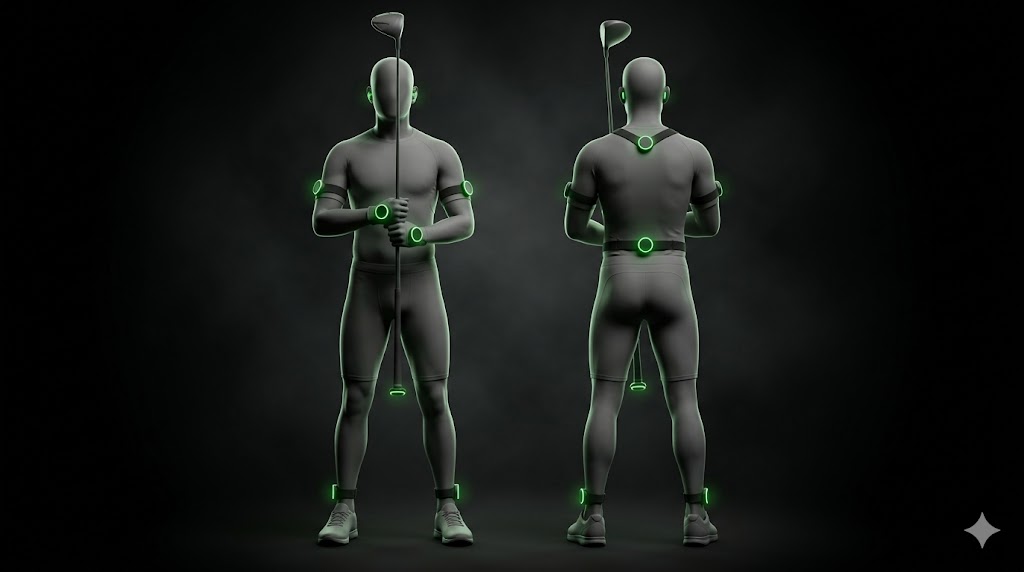
| Position | What it measures | Where you wear it |
|---|---|---|
| Grip | Club shaft motion, swing speed, plane | Clip onto the butt end of any club |
| Lead glove | Hand path, wrist release, club face | Back of your lead glove (left for right-handers) |
| Trail glove | Trail hand release, wrist hinge | Back of your trail glove |
| Lumbar (lower back) | Hip turn, sway, lateral shift | Strap around the waist, centred on the spine |
| Upper back (T1–T3) | Shoulder turn, X-Factor | Strap between the shoulder blades |
| Lead bicep | Arm speed, hand path | Strap halfway down the lead upper arm |
| Trail bicep | Trail arm folding | Strap halfway down the trail upper arm |
| Lead ankle | Weight shift, ground forces | Strap above the lead ankle |
| Trail ankle | Push-off, sequence start | Strap above the trail ankle |
| Head / earbud | Head movement, posture stability | Clip onto cap brim or use compatible earbuds |
Charging
- Plug the USB-C cable into the port on the bottom of the sensor.
- Red LED solid = charging.
- Green LED solid = fully charged.
- A full charge gives roughly 8 hours of active use and weeks of standby.
Charge all your sensors overnight before a big session so you don't worry mid-range.
First-time pairing
You only need to do this once per sensor. After that, the sensor remembers its role, and the app remembers which sensor is where.
1. Power on
Press the small button on the side of each sensor. The LED will blink blue to confirm it's awake. No blink = flat battery — charge it.
2. Open the Sensors screen
Open the app and tap the Sensors icon at the bottom. You'll see two sections:
- PAIR MODULES — for finding and naming your sensors
- LIVE DATA — for confirming everything is working
3. Scan & pair
Tap the big Scan & pair button. After a few seconds you'll see something like:
CaddieIQ-AB12CD       [ Unassigned ▼ ]
CaddieIQ-EF34GH       [ Unassigned ▼ ]
The code at the end (AB12CD) is the sensor's unique serial number. It's printed on a label on the back of the sensor too, so you can match the puck in your hand to the row on screen.
4. Tell the app which sensor is which
Tap the Unassigned dropdown next to each row and pick the position you want that sensor to be in (Grip, Lead glove, etc.).
Two things happen:
- The app remembers it (so next time you open the app, it knows).
- The app writes the role into the sensor's own memory (so even if you swap batteries or factory-reset, the sensor still knows what it is).
You'll see: "Role 'Grip' written to sensor flash."
5. Confirm it's streaming
Tap Connect & stream. After a moment, a live tile appears for each sensor:
Grip (club butt cap)              🔋 87%   208 Hz · 1,247
accel  x 0.02  y 0.01  z 0.98   |a| 0.98 g
gyro   x 0.10  y -0.05  z 0.20  °/s
What you're looking at:
- 🔋 87% — battery level.
- 208 Hz — readings per second. Higher = more detail.
- 1,247 — total readings received this session.
- accel — acceleration. Still on a table: ~
0, 0, 1(gravity). - gyro — rotation speed. Still: all three numbers close to zero.
Numbers flowing and reacting when you wiggle the sensor = you're connected.
Calibrating
Calibration tells the sensor what "still" looks like, so it can tell the difference between a real swing and ordinary noise. Do this every time you move a sensor to a different mount.
- Put the sensor in the position you'll be using.
- Place it on a flat, still surface (a table, or rest your hand on your thigh).
- In the LIVE DATA card, tap Calibrate next to the sensor.
- Hold still for one second.
- The status banner says "Grip: hold still for 1 sec…" then clears.
Done. No need to calibrate again until you move the sensor.
Day-to-day use
Once paired, every session looks like this:
- Put the sensors on (grip clip on club, glove clip on lead glove, body straps as needed).
- Open the app → Sensors → Connect & stream.
- Calibrate if you've changed mounts.
- Go to Home or Practice → pick a mode.
The app stays connected within about 10 metres (30 feet) of your phone. Walk away and the sensors auto-reconnect when you return.
The Home screen
This is what you see when you open the app. Top to bottom:
- MoCaddieIQ hero card — the welcome panel.
- Sensor status — at a glance: "2 sensors paired · 2 live". Green dot = all good; amber = paired but disconnected; orange = none paired yet. Tap to open Sensors.
- Last Speed Audit — your most recent result, with projected mph after coaching. Tap to reopen Speed Lab. (If you haven't done one yet, this card says "Run your first Speed Audit".)
- Jump into Practice — three big tiles: Putting · Speed Lab · Sensors. One tap and you're in.
- Tips — friendly reminders.
The Practice menu
Tap Practice at the bottom. Each mode has a coloured icon and a sensor requirement. Pick whichever fits today.
Speed Lab
Diagnose your kinematic chain in 20 swings. Run an 8-week protocol to unlock 5–15 mph.
Hits Driver and 7-iron baselines, finds the weakest link in your speed chain (hips, torso, arms or release), and gives you an 8-week structured protocol to unlock more clubhead speed.
After 10 swings per club, a results screen names your biggest leak and gives a projected mph if you fix it. A Protocol screen offers Sequence Lab, Hip Speed Lab or Release Lab depending on your leak.
Drill Mode
Hold the checkpoint, feel the position — visual + haptic confirms when you nail it.
Pick a checkpoint (takeaway, top of swing, halfway down, impact). The app tells you what angle to hold; your phone buzzes + the screen flashes green when you're in the right position.
Body Stillness
Quiet head, no sway, hold your posture — buzz when you drift without realising.
Silence means you're doing it right. The app monitors your position and only beeps / buzzes when you move outside a tolerance you set. Great for putting setup, head stability and pre-shot stillness.
Full Swing
One swing → face, path, plane, tempo, X-Factor + the one coaching cue that matters.
The classic. Press record, swing, get a full breakdown: clubhead speed, hand speed, tempo, face angle, club path, attack angle, plane consistency, X-Factor — plus one coaching cue at the bottom: the single biggest thing for this swing.
Putting
Face, path, tempo, stroke length, wrist stability — live from the grip + lead-glove sensor pair.
Pure putting analysis. Every stroke: face angle at impact, club path, tempo, stroke length, wrist-stability score. Aim and stroke type detected automatically.
Launch / Range
Continuous range session — every shot auto-captured with clubhead speed, hand speed and tempo.
Press Start session, hit balls. Every swing is auto-detected and logged. At the end you get total swings, average / best speed, tempo consistency, club distribution.
Free Practice
Continuous capture, swing counter + optional metronome. Logs everything.
Like Launch but quieter. Optional metronome to keep tempo. Counts your swings. Saves everything. Use when you just want to hit balls and check the data later.
Profile & settings
Tap Profile at the bottom. Settings persist across sessions.
Your Kit
A list of every sensor you've paired, with position and serial number. Quick check that everything is registered.
Skill Level
Changes how much detail the app gives you and how it phrases coaching cues.
- Beginner — Plain language, one cue per swing.
- Intermediate — Root-cause cues + how to feel it.
- Low handicap — Tour-data callouts + benchmarks.
- Pro — Every metric, every swing.
- Coach — PDF reports + per-student dashboards.
Voice Persona
How the coach sounds (if voice is enabled).
- Warm — Friendly tone.
- Neutral — Even tone.
- Factual — Numbers first, no fluff.
Where You Are
Context-aware coaching. Adjusts how chatty the app is.
- Range — Full coaching.
- On course — Quieter, only essential cues between shots.
- Lesson — Show everything.
- Comp — Silent. Data still recorded for later review.
Units
mph (imperial) or kph (metric). Changes every speed readout in the app.
Reading the metrics — plain English
What every number you'll see in the app actually means.
| Metric | What it is | Good benchmark |
|---|---|---|
| Clubhead speed | How fast the head of the club is moving at impact. | Driver: 95+ mph club, 115+ Tour. 7-iron: 75 / 85. |
| Hand speed | Hand speed at impact — higher = more forearm rotation. | Tour driver: 25–30 mph. |
| Tempo | Ratio of backswing time to downswing time. | 3:1 — same as every Tour player. |
| Face angle | Where the club face points at impact, vs aim. | Within 1° = straight. Plus = open (right for right-handers). |
| Club path | Direction the club is travelling at impact. | 0° = straight. Negative = out-to-in (slice). Positive = in-to-out (draw). |
| Attack angle | Whether the club is moving down or up at impact. | Driver: +2° to +5°. Iron: −3° to −5°. |
| Swing plane | Whether your club is on the same plane top vs address. | Consistent = repeatable. Drift = mishit risk. |
| X-Factor | How much shoulders turn more than hips at top. | Tour: 40–50°. Club: 25–35°. More = more potential power. |
| Stroke length | How far your hands travel back from address (putting). | Match to distance — same tempo, different length. |
| Wrist stability | How much your wrists rotate during the stroke (putting). | Lower the better. <2° is Tour-level. |
Care & maintenance
- Don't get the sensors wet. Water-resistant, not waterproof. Wipe off rain and sweat — don't submerge.
- Clean with a slightly damp cloth. No alcohol, no abrasives.
- Storage at room temperature. Avoid leaving them in a hot car for hours.
- Battery life: if storing for more than a month, charge to ~50% first. Don't store at 0%.
- Firmware updates: the app will prompt when one is available. ~2 minutes per sensor over Bluetooth. Don't unplug or close the app during the update.
Troubleshooting
Open any problem to see the fix.
"No modules found" when I scan
- Check the LED on each sensor — is it blinking blue? If not, press the button to wake it up.
- Is the sensor charged? Plug it in for 10 minutes and try again.
- Is Bluetooth turned on on your phone? Phone Settings → Bluetooth.
- On Android: the app needs Location permission to scan for Bluetooth devices. Settings → Apps → MoCaddieIQ → Permissions.
- Move closer to the sensor (within 1 metre) and tap Scan & pair again.
The app says "Bluetooth permission denied"
Go to your phone's Settings → Apps → MoCaddieIQ → Permissions and allow Bluetooth + Location (Android) or Bluetooth (iOS). Then reopen the app.
A sensor pairs but won't stream data
- Tap Disconnect, then Connect & stream again.
- If still nothing, close the app fully and reopen.
- If still nothing, power-cycle the sensor: press and hold the button for 5 seconds until it turns off, then press once to turn it back on.
The numbers in LIVE DATA look weird (huge values when still)
The sensor needs calibrating. Place it on a flat surface and tap Calibrate.
My swing speed seems too low / too high
- Check the sensor is firmly clipped on. A loose grip clip reads lower; an over-tight glove clip picks up shake.
- Make sure you've calibrated in the position you're using.
- Confirm the sensor is assigned to the correct role. A "lead glove" sensor reporting from your grip will give nonsense numbers.
One sensor keeps disconnecting mid-session
- Check the battery — below 15% the connection becomes unreliable. Charge it.
- Move your phone closer to your body (a phone in a back pocket can lose line-of-sight to body-worn sensors).
- Try the phone in a different position — pocket, belt clip, golf bag — to find a stable signal.
The app says a sensor is paired but it's not in my hands
Someone else's phone may have paired with one of your sensors, or you have a left-over assignment from before. Sensors → Scan & pair, find the matching serial, and set its dropdown back to "Unassigned". Or tap an existing entry to reassign it.
Putting / Full Swing won't start — says "Sensors not connected"
Go to Sensors → Connect & stream first. Practice modes need an active connection. Once connected, go back and try the mode again.
The phone keeps vibrating in Drill Mode when I'm clearly still
Calibration drift. Exit Drill Mode, go to Sensors, Calibrate the sensor, then come back.
Speed Audit doesn't detect my swing
- Make sure the Grip sensor is paired and connected.
- Try a slightly bigger, fuller swing — the impact-detection threshold ignores practice waggles.
- If you've just swapped clubs, take a couple of practice swings before pressing Record.
The app drains my phone battery quickly
Bluetooth streaming at 200+ Hz from multiple sensors is power-hungry. To save battery:
- Lower the sample rate from 200 Hz to 100 Hz (Sensors → tap Rate on each tile → 100 Hz). Plenty for full-swing analysis.
- Disconnect when you're not actively practising.
- Use the On course context in Profile.
I want to factory-reset a sensor
Press and hold the button for 10 seconds. The LED will flash red three times. The sensor is now factory-reset — re-pair it from the Sensors screen.
FAQ
Do I need an internet connection?
Will the sensors damage my club or glove?
Can I use the sensors with multiple clubs?
Can my coach see my data on their phone?
Is the data accurate enough for a Tour pro?
What if I lose a sensor?
Need more help?
- In-app help — tap your profile photo → Help for live FAQs.
- Email — support@caddieiq.golf — we usually reply same day.
- Web — full video tutorials at caddieiq.golf/swing-lab.